
Never promise a dish the kitchen can't serve
A dish shows as sold out on the menu the moment that outlet's recipes and stock say it's gone. Guests stop ordering food the kitchen cannot make.
Guests order from their phone. The floor, the kitchen, and the till share the same order. Recipes, stock, purchasing, and production sit on that same sale — so you can see what was served and what is left.
The guest menu can be read in English, Sinhala, and Tamil.
Free to start. No card required.
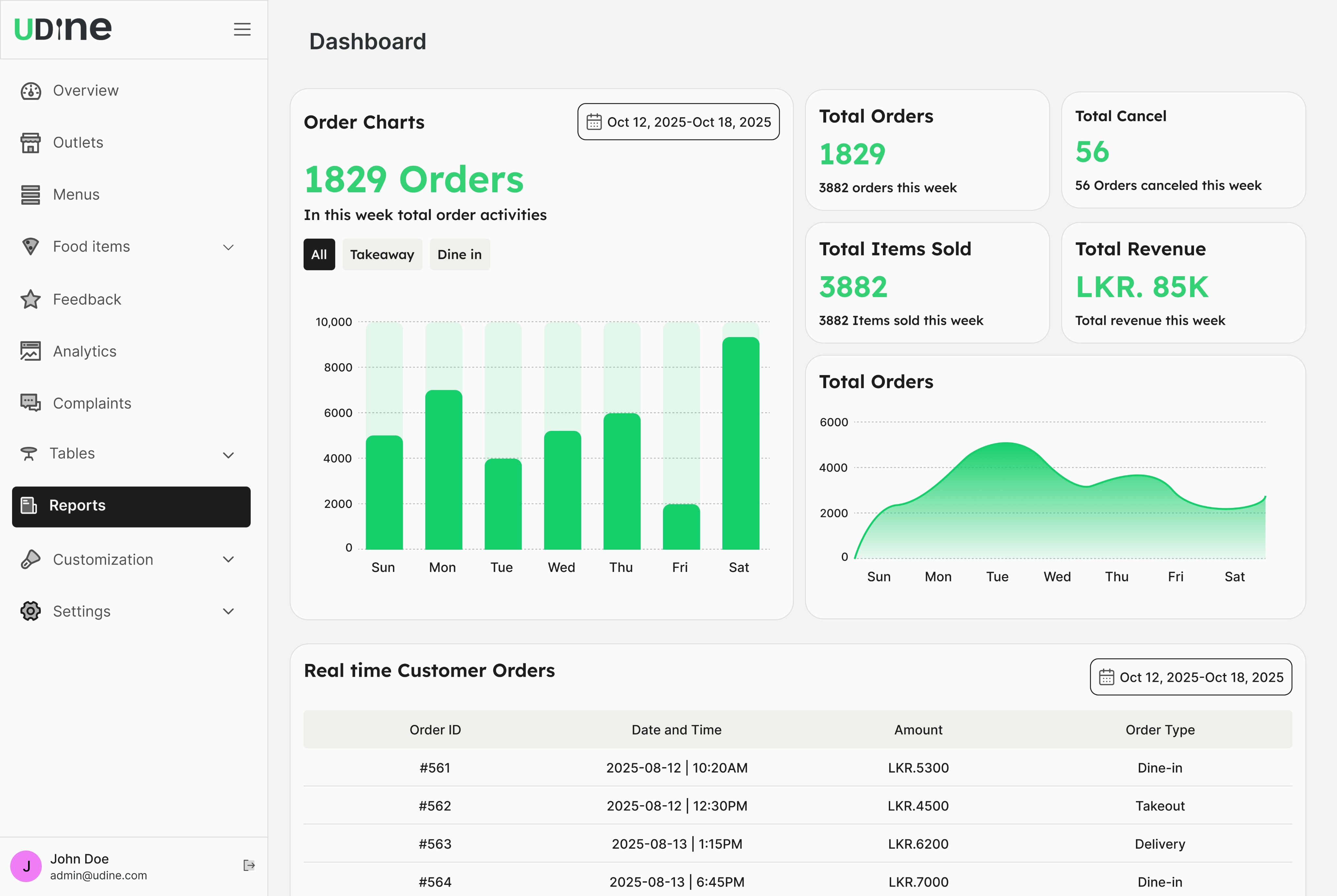
The same menu, the same prices, the same kitchen ticket. Guests pick the language they read, so the first order reaches the kitchen without a waiter translating it.
A dish shows as sold out on the menu the moment that outlet's recipes and stock say it's gone. Guests stop ordering food the kitchen cannot make.
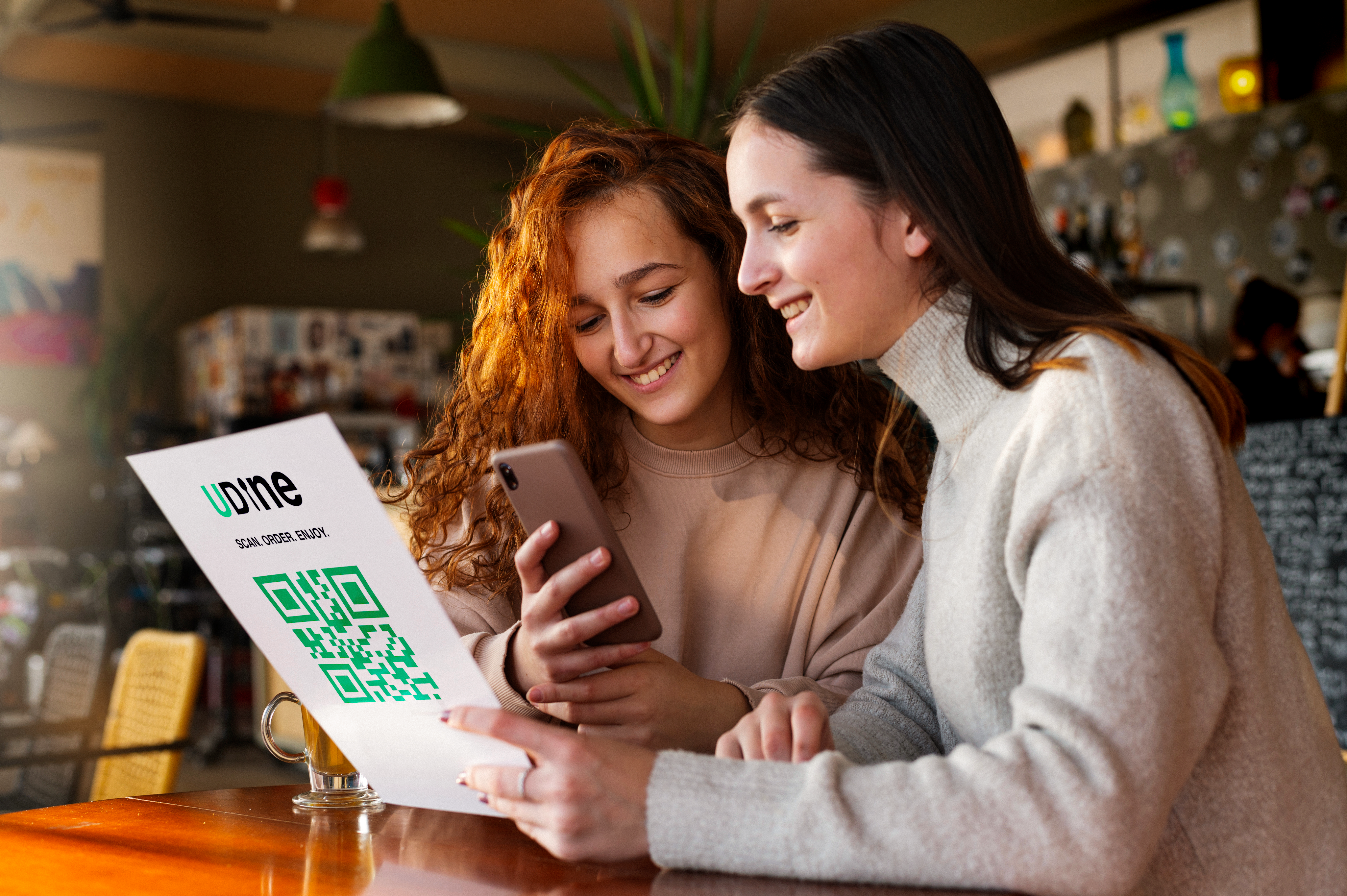
A guest opens the menu from a QR code or a public link and places the order. No staff account, no app download, no waiter transcribing.
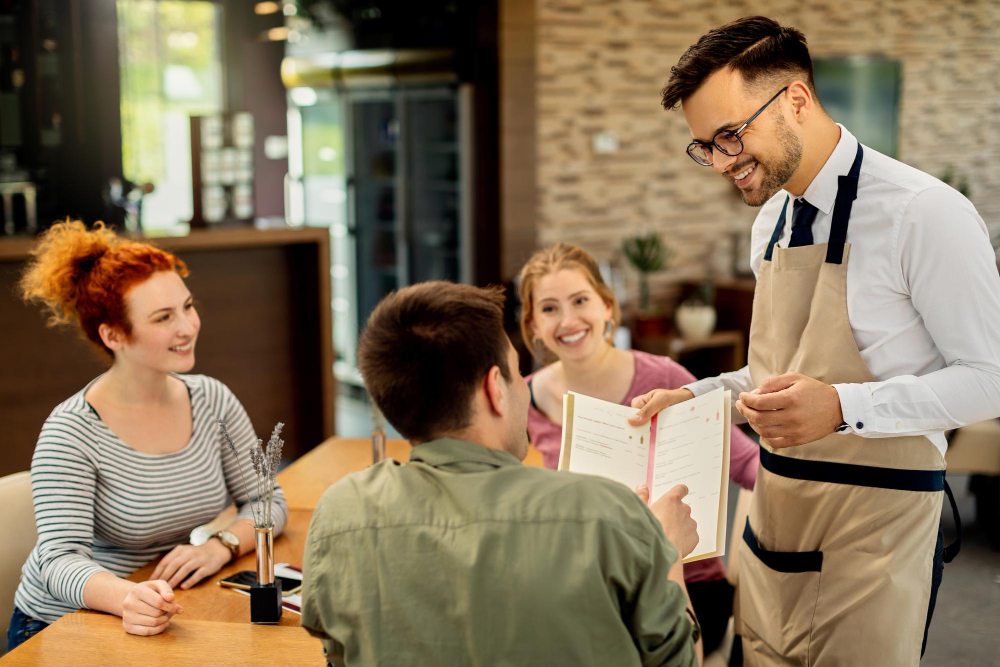
Build menus, categories, and items once. Schedule what shows on weekdays, weekends, or a single day. An outlet can override an item without rewriting the brand menu.
Choose the typeface, a light or dark theme, and the styling of the public menu page. Every dish carries a short code staff can call out at the counter.
A dish shows as sold out on the menu the moment that outlet's recipes and stock say it's gone. Guests stop ordering food the kitchen cannot make.
A guest opens the menu from a QR code or a public link and places the order. No staff account, no app download, no waiter transcribing.
Build menus, categories, and items once. Schedule what shows on weekdays, weekends, or a single day. An outlet can override an item without rewriting the brand menu.
Choose the typeface, a light or dark theme, and the styling of the public menu page. Every dish carries a short code staff can call out at the counter.
Staff run the order from draft to completed. The floor and the kitchen see updates as they happen. Take cash, card, cardless, or a split payment. Every view, edit, and invoice send is kept on the order — so end of day starts from the system, not from a notebook and a card machine that never talked to each other.
Free, occupied, ready, dining, ready to pay, cleaning. The room can see which tables are free, eating, or waiting for the bill.
Kitchen staff sign in on a display with a device PIN and see tickets for their kitchen. A ticket moves from sent, to preparing, to ready.
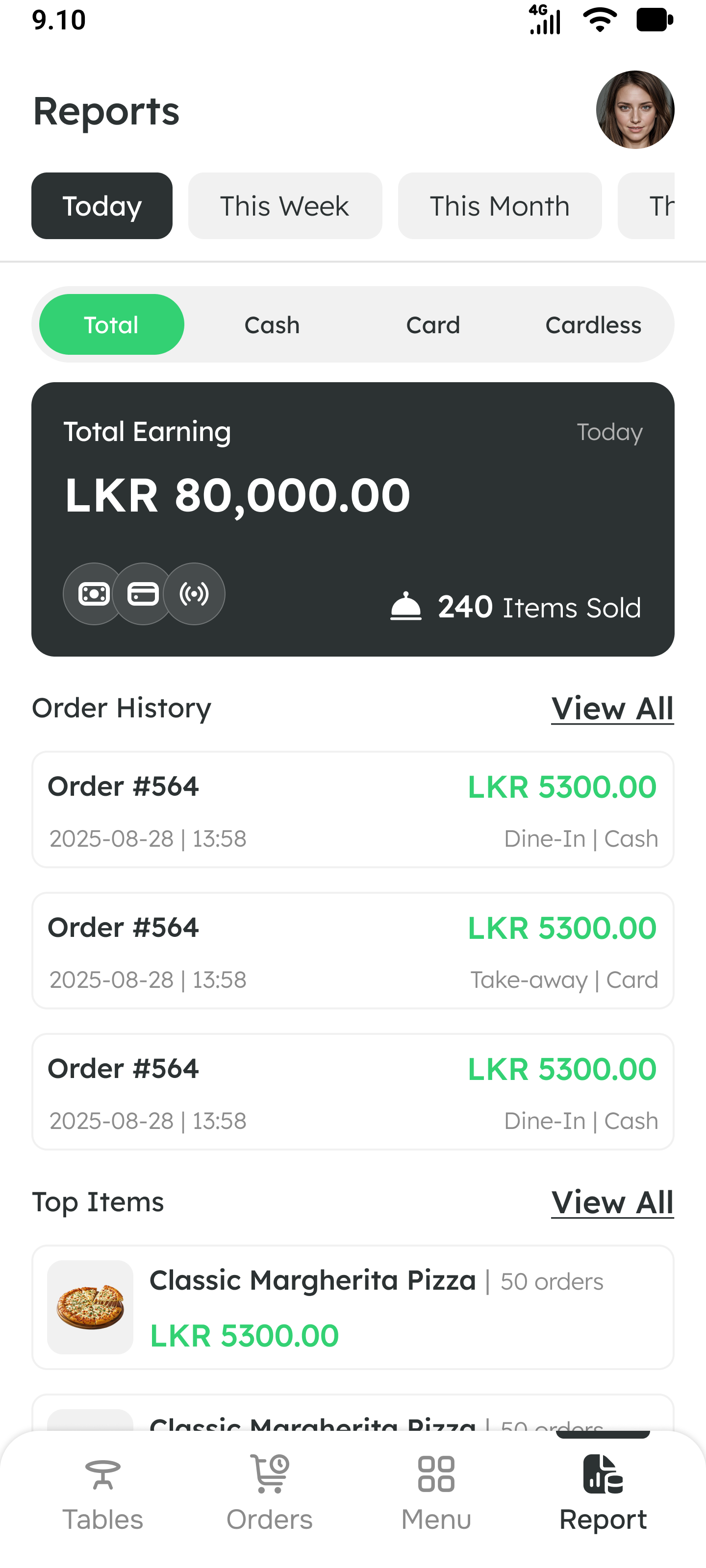
Open and close a till session on an assigned register. Record cash in and cash out separately from sales. Refund a dish or an amount, with a reason, tied to the original order.
Two tables cannot sell the last portion twice.
Sending a dish to the kitchen reserves the portions it needs against that order, so a later order cannot take the same stock.
Run a percentage or a fixed amount off, buy-X-get-Y, a free item above a minimum spend, or a bundle price. Limit an offer by time, weekday, outlet, dine-in or takeaway, and channel. Cap how many times it can be used and how much it may give away. When more than one offer fits, checkout picks the best one — the cashier never does the math.
A dish is a list of ingredients. Selling it consumes them. What left the kitchen and what left the store are the same event — so the storeroom count is something the restaurant can trace, not a spreadsheet only one person understands.
Adjust stock for wastage, damage, expiry, theft, or a recount — and say why.
Transfer stock, or request it from another location. A transfer can sit in transit until it arrives, and loss on the way can be recorded.
Send a price request and collect a quotation through a link. The supplier does not need a staff login, and an approved quote can become the purchase.
A profile holds the name, phone, and email, plus tags and segments. It shows how many orders they have placed and when they first and last visited — so an offer can be aimed at a segment instead of everyone.
Guests leave a rating and a comment, with or without a name. Staff reply and mark it resolved. Read feedback across the outlet, not one comment at a time.
Sales for today, yesterday, this week, this month, and this year. Every transaction, or only cash in, or only cash out.
The register report covers the till; cashier performance is reported with it. Export the figures to a file so the accountant never retypes them.
Owner, outlet manager, inventory manager, stock manager, cashier, waiter, kitchen, and head chef each get the screens for their role. A new hire joins with an invitation and a role — not a shared password.
Owners, outlet managers, and the people who buy and count stock
The console is where the brand menu, outlets, stock, purchasing, offers, and reports live. It is the one place an owner can answer “how did we do?” and “what do we have?” without asking anyone to add up bills or count a shelf.
Cashiers running a register on a shift
The order, the payment, and the invoice are one record. The cashier opens a till session on an assigned register, takes cash, card, cardless, or a split payment, and closes the shift with a start and an end.
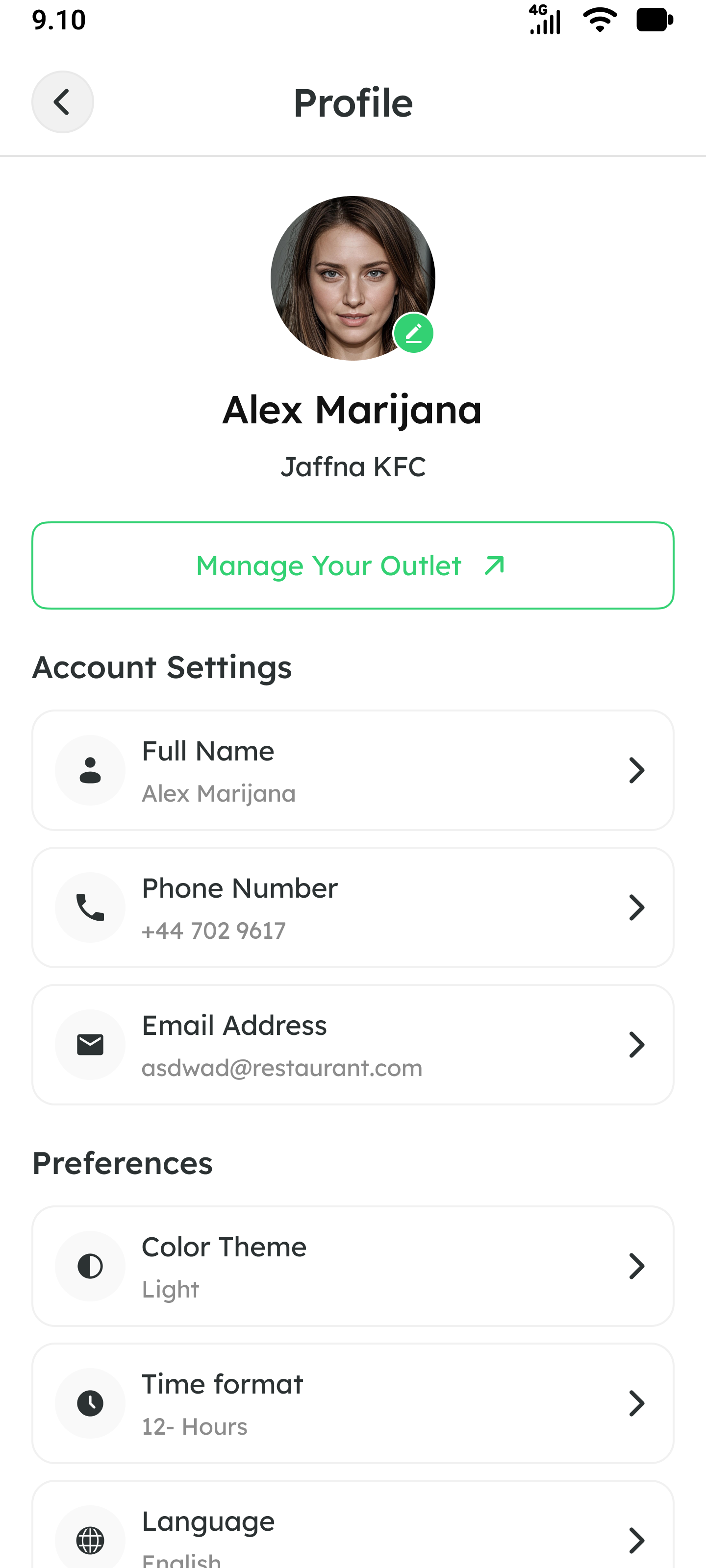
Floor staff taking orders and watching tables
Every table has a state — free, occupied, ready, dining, ready to pay, cleaning. Each dish on the order moves from draft, to the kitchen, to preparing, to ready, to served, so the floor never has to ask the pass what's happening.
Kitchen staff and the head chef at the pass
Kitchen staff sign in on a display — including with a device PIN — and see the tickets for their kitchen. A ticket moves from sent, to preparing, to ready. Sending a dish reserves the ingredients it needs, so two tables cannot sell the last portion twice.
A group runs locations under one brand, with each outlet's own menu overrides, tills, and stock.
Merchant branding, currency, and date and time format — the product presents itself in the restaurant's terms.
Staff devices receive a push when something needs them. Approvals and stock events wait in one notification center for the role that handles them.
Tell us about your restaurant and open your UDine account. No card required to start.
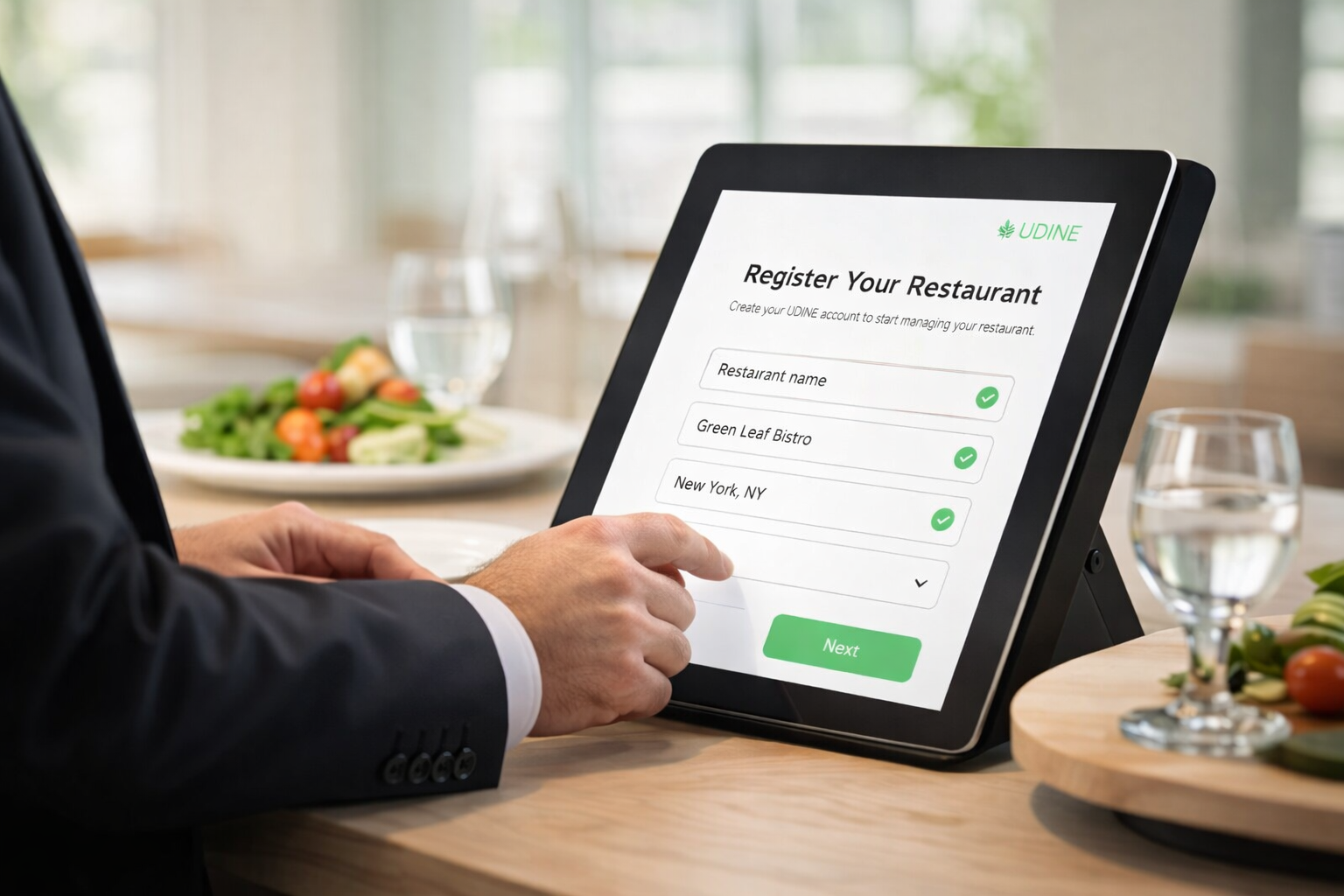
Load your menu, set prices, and choose your service rules — dine-in, takeaway, or both. Invite your team with a role each.
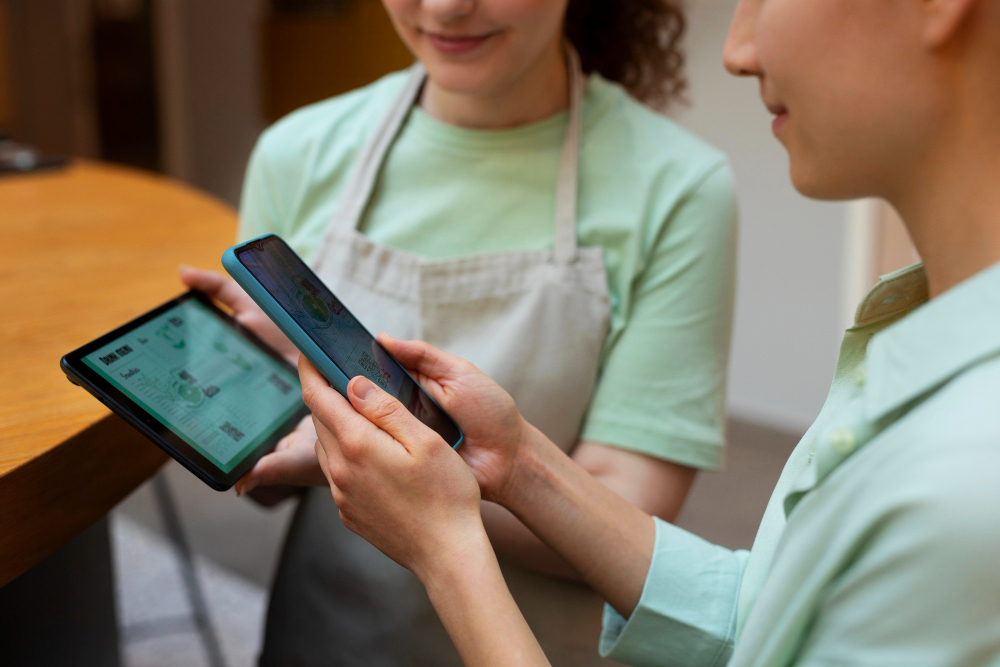

Generate and print a unique QR code for every table. Each seat becomes an ordering point that opens your branded menu.
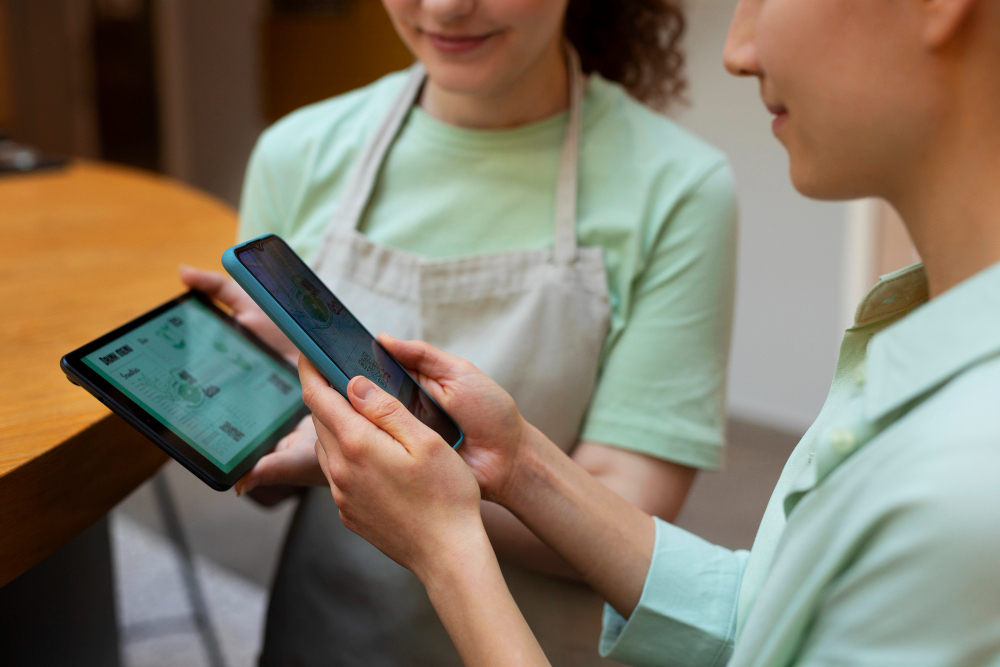
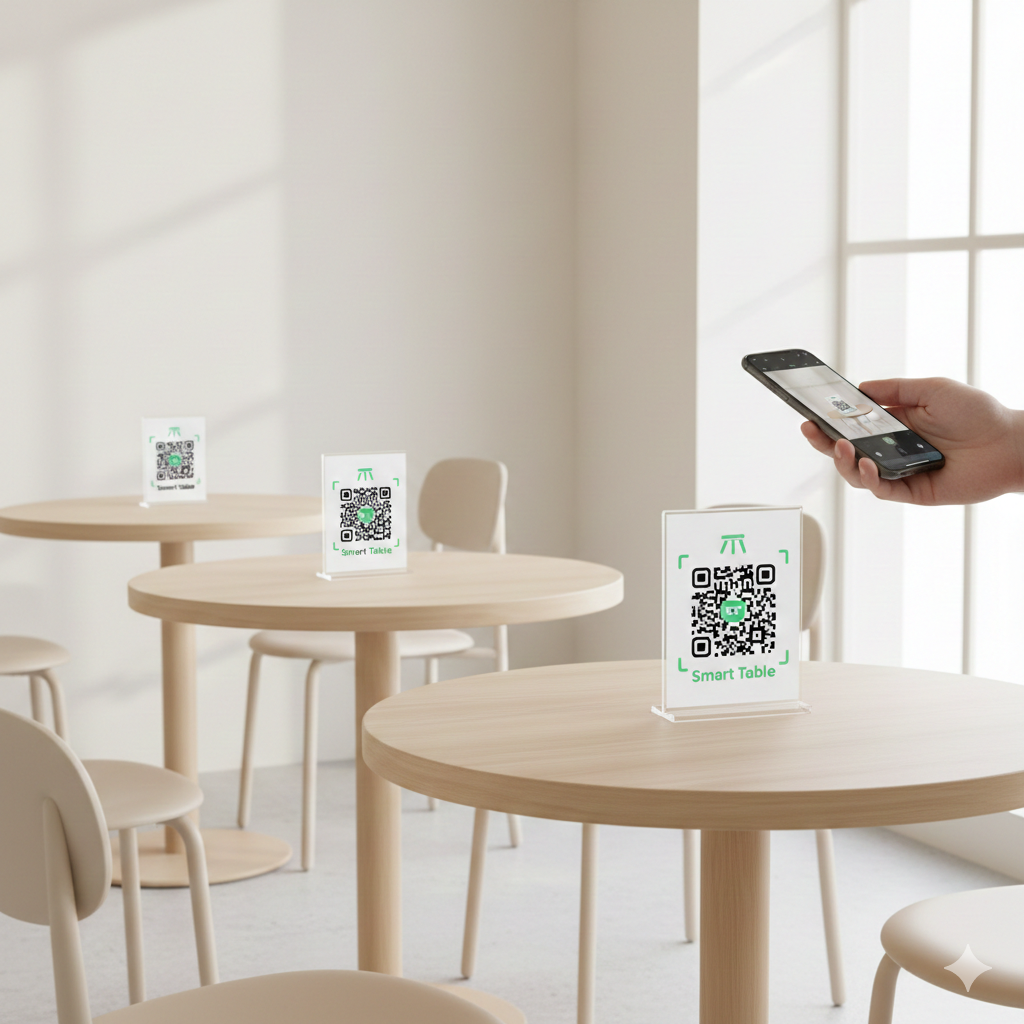
Guests order from their phones while the floor, the kitchen, and the till work from the same ticket.
Free to start. No card required.
A café's morning rush, a bar's last round, and a restaurant group's five outlets ask different things of the same system. Pick the page written for your shift.
Counter and QR ordering with item codes, sold-out status the moment the last croissant goes, and one sales report for the owner who also closes the register.
Tables that stay open across rounds, split and combined payments, happy hours that end on time, and a stock hold so the last bottle isn't sold twice.
The full floor-to-kitchen-to-till loop, a brand menu each outlet can vary, and recipes tied to stock so you know food cost mid-service.